

What do you need to do to simply maintain an Android application in regard to Android SDK and dependencies?
Even for commercially-maintained applications, it is not always clear how to perform basic maintenance outside of bug fixes and new features. Like any code ecosystem, the Android world is constantly evolving: security vulnerabilities are discovered and patched, the Android platform and tools evolve, and the third-party libraries that you depend on can change over time.
Here is a checklist for the bare-minimum steps to keep your application up-to-date. I’ve defined an ordered list. If it’s helpful for you, you can also copy-paste the markdown-formatted list for your ticket or work log.
I’m writing this mostly for myself, as someone who maintains small non-commercial applications, I often need to just keep an app up-to-date. Hopefully this checklist makes it possible to do this well and effectively. The goal is to know what to do, what information is needed for it to go well, and in what order. Some updates may cause more work if you need to adapt to breaking changes. If this comes up, I’d suggest handling it as a separate task or ticket, in order to keep good control on the time it takes.
General considerations before you start
External constraints for Android application updates
Google delivers a new Android SDK yearly, and has a sundown policy on old versions that comes into effect on August 31st. This impacts the targetSdk for your application.
This (unofficial) page helpfully shows what the current Android versions for compileSdk and targetSdk are. At the bottom of the page there is an update timestamp.
Apparently, upload to the Play Store is blocked for older targetSdk versions. Applications that have an older version and that are already available in the Play Store are hidden for new devices.
From the AGP version stem constraints on the versions of Gradle, Kotlin, etc. This illustration shows those build relationships.

Risks and common issues when updating your Android application
Ideally, the update will be quick and painless, but it’s nice to be prepared for what can go wrong!
These examples are somewhat specific to the current versions, so beware if you’re reading this after 2026. As indicated later, reading the Release Notes (or asking an up-to-date IA) will give you this kind of useful information.
| Step | Common Issues | Symptoms | Fixes |
| Android Studio (Panda 1 Patch 1) | Version incompatibility with AGP; won’t launch; indexing crashes | « Incompatible AGP » sync fail; rainbow wheel hangs | Toolbox for multi-version; delete ~/Library/Application Support/Google/AndroidStudio*; Help > Invalidate Caches |
| AGP (9.0.1) | Built-in Kotlin conflicts; deprecated DSLs; KMP source sets; plugin incompatibility (Hilt/KSP) | Gradle sync fails; kotlin.androidLibrary{} errors; BuildConfig broken | AGP Upgrade Assistant; remove Kotlin plugin IDs; android.newDsl=false temp; update KSP/Hilt |
| compileSdk / targetSdk | Missing SDK; lint/behavior changes (permissions, services); 3rd-party SDK lags | « SDK 36 not found »; runtime crashes (dialogs, notifications); Play reqs | SDK Manager install; test permissions/notifications on real devices; audit libs |
| Gradle (9.1.0+) | Wrapper bootstrap fails; daemon conflicts; local Gradle mismatch | ./gradlew wrapper loops/fails; OOM | Manual edit gradle-wrapper.properties; ./gradlew --stop; delete .gradle |
| Kotlin/KSP (2.3.10+) | JVM target mismatch (Kapt/KSP); coroutine deprecations | Kapt errors; jvmTarget=1.8 conflicts | kapt { jvmTarget = "17" }; match KSP suffix (e.g. -1.0.25) |
| Other plugins | Version mismatches; custom tasks break | Plugin portal sync; check AGP release notes for compatibility | Plugin portal sync; check AGP release notes for compatibility |
- Always: Branch or branches per step (e.g. « upgrade-q1-agp », etc.);
./gradlew buildHealth; full CI/tests. - AGP 9.0 nukes:
gradle.propertiesopt-outs:android.enableBuiltInKotlin=false,android.newDsl=false(remove post-validation). These should be added by default if you use the AGP upgrade assistant in Android Studio. - Multi-module (Gradle) application: Update
:rootfirst, then modules sequentially.
When to update? How frequently?
If your application has planned updates for features and bug fixes, time maintenance updates right after a release, so you have an entire cycle to detect runtime regressions before the next production build.
If your application is very low-maintenance and has no new features, a quarterly update would be ideal to avoid the changes being too numerous each time. Yearly would be the minimum to account for regular targetSdk increments.
Bare-bones work checklist
This checklist contains the minimum steps. It is meant to be easy to copy and paste into a work ticket or work log. The square brackets should act as a checkbox in Markdown. Replace the space between the two square brackets by an « x » to check the box and show what task is done.
This list prioritizes updates by risk and importance: security and tooling (AGP, Kotlin, core AndroidX) first, then testing tools, then core infra (networking, DI, DB), then peripheral UI/utility libs.
This list needs to be amended for your specific application after reading the AGP Release Notes, in order to add steps mentionned there.
Remove already performed updates (yay!).
[ ] Check that everything is working as expected and tests are green before making any changes
[ ] Update IDE to [X.X.X] latest stable version (if using an Android-specialized IDE)
[ ] Increment 'versionCode' to "[X.X.X]" and 'versionName' to "[X.X.X]"
[ ] In case of an AGP update, read through AGP Release Notes and identify potential additional issues (Gradle, Kotlin version changes, etc.)
[ ] Foolowing APG recommendations, update Gradle wrapper from [X.X.X] to [X.X.X]
[ ] Update AGP from [X.X.X] to [X.X.X]; optional additional steps:
 - [ ] Update Java from [X.X.X] to [X.X.X]
 - [ ] Update Kotlin (GPP, KSP)  from [X.X.X] to [X.X.X]
 - [ ] Update other Gradle plugins
[ ] Android Platform: download latest stable Android SDK and update value for 'compileSdk' and ensure your 'targetSdk' matches current recommendation (and consider updating minimumSdk in a later task) from [X.X.X] to [X.X.X]
[ ] Update automated test libraries (JUnit/Espresso/Robolectric)
[ ] Core AndroidX BOM (core-ktx, lifecycle, activity, appcompat)
[ ] Navigation / Compose / Hilt / Room (your infra)
[ ] Peripheral libs (network, images, utils), etc.
Prepare your developer tools
Check that your project is currently OK
Nothing worse than making « small » changes and discovering after that what you assumed was working code was actually broken! Then you waste time looking for how the new changes had this impact, when they were actually irrelevant to the problem.
Before any changes, make sure your application is running as expected, and run all automated tests.
Check your Version Control System, e.g. git
Like for any potentially impactful change, this maintenance update should be done on a branch, separate from other ongoing changes. If you happen to have more urgent work to do on your application, it is much easier to set aside the maintenance update if it is already contained on a separate branch.
Is your Version Control System ready?
In some cases, you need to check that your local version control system is ready for changes.
For example, is it possible to push to your (remote) repository? Is your auth token still valid?
Check with this no-action command for example:git push --dry-run origin main
Update your code editor, e.g. Android Studio
Now is a good time to make sure you have the latest version of your Integrated Development Environment (IDE), especially if it is specialized for Android development. Android Studio provides tools for updating AGP for example, and it’s ideal to have those up-to-date.
Which updates? Tools and bots
Android Studio helps you find out what dependencies have newer versions, or you can use other tools such as Gradle Versions Plugin, Renovate, Dependabot, etc.
In Android Studio, go to File > Project Structure > Suggestions > <All Modules> to see available updates.
Application Code preparation
Centralize dependency versions
Make it easier to ensure clear dependency versioning by centralizing all your dependency versions. Use a version catalog (libs.versions.toml) or at least a single Gradle file holding all dependency versions for the whole multi-module project. This avoids referencing the same dependency multiple times with different versions, or mixing incompatible dependencies.
Automated tests and targeted manual checks
A (hopefully) « no-impact » maintenance update is one of those times when you can appreciate having automated tests in place!
But if you do not have such tests, it’s a good time to identify where you would need them. Ensure you have a reliable test suite: fast unit tests, instrumented/Compose UI tests for critical flows, and CI that runs them on every branch.
Similarly, if some features are not automatically tested, a good practice is to identify a list of manual checks that are useful for your application. Again, this list can be the starting point for automated end-to-end tests as well.
If you do not at all have a list of checks (either automated or manual) to ensure your application works as expected before and after the update, I’d suggest not doing any maintenance update until this more important topic is cleared up.
Remove unused dependencies
Minimize and clean up dependencies: remove unused libraries and avoid overlapping ones (e.g. multiple JSON or image libs) so future updates have fewer moving parts.
Removing unused dependencies avoids working to update dependencies that you do not even use. This includes transitive dependencies pulled in from these direct dependencies.
In order to find unused dependencies, for example, use the AutonomousApps Dependency Analysis Gradle Plugin. Run ./gradlew buildHealth and see what unused dependencies it uncovers.
NB: Always consider runtime‑only uses (reflection, annotation processors, resources, Play Services, Firebase, etc.): byte code‑based tools may claim “unused” even though they are used via reflection or resources, so treat reports as advice, not ground truth, and validate with tests.
Deprecation warnings
These warnings are meant to give you advance notice before features actually change. So, to avoid needing to deal with them when you are updating everything else, it’s easier to deal with them at the first opportunity. I’d suggest creating a ticket as soon as you notice them, and referencing the ticket in the code where the warning appears.
Actual maintenance update steps
As mentionned, these should be done on a dedicated branch in your code versioning system.
Your application version
Like any change, this maintenance update will result in the publication of a new release of your application.
The version of the application will therefore need to change, so increment the values of versionCode and the versionName string before you make any change to the code.
Read through the AGP release notes
The AGP version release notes flags any Gradle/Kotlin requirements that you may need to handle, and breaking changes.
The current version at the time of writing is APG 9.0. The release notes are very useful to learn what the updates will impact (and help to identify risks in the update). There may be breaking changes, deprecations to plan for. Your goal in this update is to do the bare minimum. If more work needs to be done, this is the opportunity to schedule it.
In general: update in small steps and verify all is in order
You can batch changes (commits) in small steps. Either do one library per commit or tightly related groups, such as AndroidX Navigation artifacts, together. This makes bisecting regressions much easier. You will also be able to use your commit messages to illustrate what gets updated.
Use changelogs or release notes of each library to identify breaking changes, deprecations, and migration steps. Where possible plan tasks for later (e.g. use flags to keep old behavior when available).
A simple rule of thumb to balance risk and time-efficiency:
- Always read the release notes or changelogs for:
- Any major version bump (e.g. 2.x → 3.0 ). These often include breaking changes, removed APIs, and behavior differences that can silently break your app or tests.
- Any update to core dependencies: AGP, Gradle, Kotlin, KSP, AndroidX core/lifecycle/navigation, coroutines, Compose, DB, DI, networking, test frameworks.
- Only skim title + headings. Check if the changelog mentions new defaults, deprecations, or configuration changes (e.g. new StrictMode-like checks, new feature flags) for:
- Minor version bumps to mid-importance libs (e.g. x.2.2 → x.3.0 ).
- Dependencies that transitively affect many modules, or are notoriously fragile (annotation processors, test frameworks, Gradle plugins).
- Security/bugfix releases (look for “breaking,” “migration,” “default change”): updates that explicitly mention vulnerabilities, data-loss, or concurrency fixes; you’ll want to know what they changed and whether to add tests or config.
- Optionally skip (rely on tests):
- Patch bumps (e.g. x.y.2 → x.y.3 ) of low-risk utility libs with clear “no breaking change” semantic versioning and tiny surface in your app.
Validation after each step:
- Run
./gradlew assembleand unit tests locally to catch obvious API changes or compilation issues early. - Run
./gradlew lintand ensure there are no API errors - Run automated tests, and targeted manual tests depending on update surface
Update AGP
As mentionned previously, you need to read the Release Notes of the AGP version.
This will dictate the minimum Gradle version and Kotlin version (may be bundled in). See for example the compatible versions for AGP v.9.0.1.
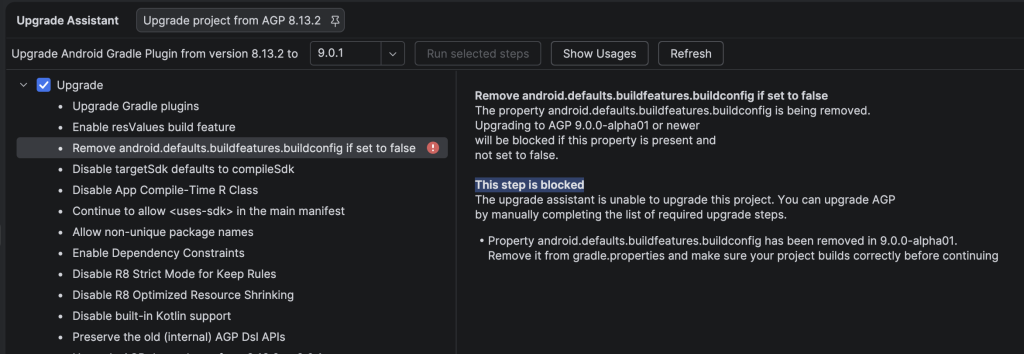
If you need to update the Android Gradle Plugin, your (updated) IDE can help you with that via the AGP Upgrade Assistant. The upgrade steps listed there will show you if there are some additional steps needed (Gradle and Gradle wrapper upgrade, etc.), as well as indicate if there is some problem.
For example, in the following screen capture there is an issue to resolve in some build script properties.
Update Java/JDK version
This may be required by AGP, as indicated with the values of ‘sourceCompatibility‘ and ‘jvmTarget‘, or if you hit performance bottlenecks. Newer versions (JDK 21) apparently can improve build times. After this update, a successful compilation is all you need, no app changes needed.
You can install a new JDK directly in Android Studio via SDK Manager > SDK Tools > Show Details > Oracle JDK 21
Then edit your build scripts. In the module build.gradle or build.gradle.kts, define:
// compileOptions
sourceCompatibility JavaVersion.VERSION_17 // or 21
targetCompatibility JavaVersion.VERSION_17
// kotlinOptions
jvmTarget = '17' // or '21'Verify the new version is applied correctly: ./gradlew --version
and compiles successfully: ./gradlew assembleDebug
Update Gradle wrapper
Your IDE can help you with this! But if not done when updating AGP with the AGP Upgrade Assistant, update your Gradle wrapper after AGP sync to the exact minimum version required, e.g. Gradle version « 9.1.0 » for AGP 9.0.1, with the command:
./gradlew wrapper --gradle-version=9.1.0
This updates the following files: gradle-wrapper.jar, gradle-wrapper.properties, and gradlew.bat.
Update Kotlin GPP / KSP
If required for AGP, of if you need a specific version.
Update other Gradle plugins
Nav Safe Args, Hilt: match AGP/Kotlin compatibilty
Update the Android SDK
You may need to download the newest Android SDK. This will be needed if your compileSdk is due to change. Without this, Gradle will report errors (« SDK not found ») and should prompt you to download, but this may fail (due to licensing or other issue), in which case a manual download is possible. This can be performed with Android Studio via Tools > SDK Manager > SDK Platforms.
Android SDK (from https://developer.android.com/build)
- The compileSdk determines which Android and Java APIs are available when compiling your source code. To use the latest Android features, use the latest Android SDK when compiling.
- The minSdk specifies the lowest version of Android that you want your app to support. Setting minSdk restricts which devices can install your app. You will get build warnings if you use incompatible APIs, and allow you to make features conditional (users with older devices can use your app, but not the features which require a newer SDK). Upgrade carefully depending on your installed and desired user base.
- the targetSdk attests which SDK version you have tested against, and the runtime behavior of your code. This value is not strictly dependent on compileSDK. Upgrade carefully depending on installed user base / new features needed for your application / Google constraints on Play Store.
Updating dependencies!
This is the moment to use Android Studio’s dependency update helper. Either via the File > Project Structure > Suggestions window, or by opeing the file where you library versions are defined (libs.versions.toml or build script file). Version numbers where an update is available will be shown with an orange Warning squiggle underline and a helpful pop-up shows what newest version is available.
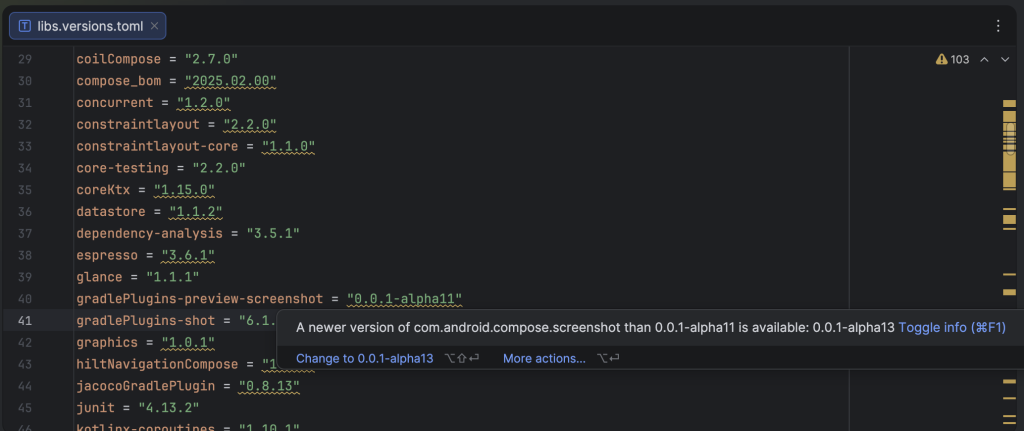
Be strategic about the order of your updates. Unfortunately, it can happen that one dependency requires another to be upgraded first. I had this happen with KSP which caused errors until I ugraded my version of Hilt for example. In this case, a coding-trained AI can be precious to get the latest relevant info.
1. Update testing dependencies
These are your tools for checking the rest, so it’s best to make sure they are up-to-date before using them for verification.
2. Update Core AndroidX libraries
core-ktx, lifecycle, activity, appcompat
for each, test critical flows.
3. Architecture and infrastructure libraries
Navigation / Compose / Hilt / Koin / Room (your infra)
Run feature tests specifically.
4. Other peripheral libraries
network, images, utils
Run feature tests specifically.
Testing on your CI/CD chain
Running the build and automated tests on your work computer is often not the final target environment. Some CI/CD environments have limited network access or use a local secure library repository proxy, i.e. usually a more constrained environment than your personal work computer.
Use a branch-run build on your CI/CD chain to check that all the necessary versions are available there.
Finally, merge!
Don’t forget to warn your colleagues during this entire process so they are not surprised at the last moment by the environment changes.
I’d love to get other developers’ feedback on how they handle this type of maintenance to make it go as smoothly as possible! Don’t hesitate to comment.